Kiro starts thinking
Floating status pet for Kiro
Kiro Buddy
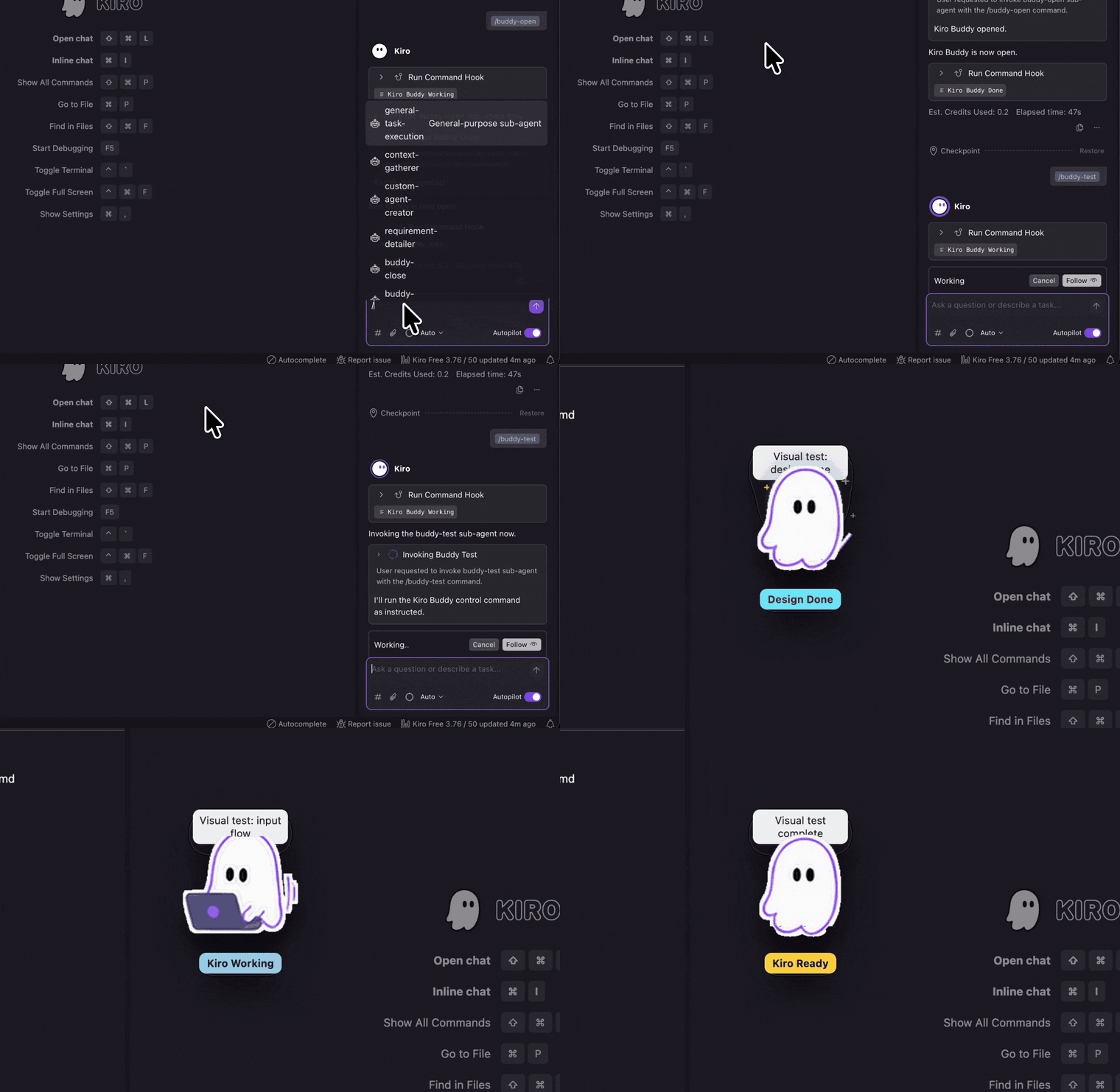
A cute desktop companion that reacts to Kiro agent activity: working, asking for input, done, errors, and spec-driven design phases.
Unofficial community project made by Jagatees. Kiro Buddy is not assigned, sponsored, endorsed, or maintained by AWS.

Waiting for your input
Agent run completed
Design, Requirements, Task List
Kiro IDE setup
Using Kiro in the app? Install Buddy inside your Kiro workspace.
This path is for the Kiro IDE desktop app. Install Kiro IDE first, open or create a project, then run the Buddy installer from that project folder. Buddy adds hooks to `.kiro/hooks`, slash commands to `.kiro/agents`, and the tiny status runner to `.kiro/kiro-buddy`. On macOS, each workspace gets its own Buddy status file for separate project windows.
The package is live on npm as `@jagatees/kiro-buddy@0.1.22`.
- First install Kiro IDE and Node.js LTS
- Run the command from your Kiro project folder
- Use `/buddy-open`, `/buddy-close`, and `/buddy-test`
$ npx -y @jagatees/kiro-buddy install> /buddy-open> /buddy-test
Kiro CLI setup
Using Kiro from Terminal? Install Kiro CLI before Buddy CLI hooks.
This path is only for Kiro CLI users. Install Node.js LTS, install Kiro CLI, run `kiro-cli login`, then add Buddy CLI hooks inside your project folder. Use `cli run` when you want each terminal session to get its own Buddy window.
Kiro Buddy Terminal Setup For Windows
Install Node.js LTS and Kiro CLI first. After `kiro-cli login` works, install Buddy CLI hooks and start Kiro CLI with the Buddy agent enabled.
$ winget install OpenJS.NodeJS.LTS$ kiro-cli login$ mkdir D:\my-kiro-project$ cd D:\my-kiro-project$ npx -y @jagatees/kiro-buddy cli install$ npx -y @jagatees/kiro-buddy cli run
Expected result
- Kiro Buddy opens automatically.
- Buddy changes status while Kiro CLI is working.
- Buddy stays open after the first prompt.
- Kiro CLI hook messages show successful green check marks.
Mac Terminal Kiro CLI setup
Install Kiro CLI on the Mac first, then log in and run the Buddy CLI hook installer from your project folder. Buddy opens through the CLI hooks, updates as prompts and tool approvals happen, and can run separate windows for multiple terminal sessions.
$ kiro-cli --version$ kiro-cli login$ mkdir -p ~/my-kiro-project$ cd ~/my-kiro-project$ npx -y @jagatees/kiro-buddy cli install$ npx -y @jagatees/kiro-buddy cli run
MacBook result
- Kiro CLI discovers the `kiro-buddy-cli` agent config.
- Buddy opens when the terminal agent starts.
- Buddy switches between working, asking, and done.
- `cli run` gives each terminal its own Buddy session.
Optional shortcut
Prefer a global command?
You can install Buddy globally, then run the shorter helper command in any Kiro project.
$ npm install -g @jagatees/kiro-buddy$ kiro-buddy cli install$ kiro-cli chat --agent kiro-buddy-cli
Desktop companion
A small floating Buddy stays on top while Kiro runs, so agent state is visible without checking logs.
Hook powered
Install writes Kiro Agent Hooks, slash agents, and a status runner into the current workspace.
Phase aware
Buddy can show working, asking, done, error, and spec-driven Design, Requirements, or Task List states.
Sprite bay
New sprite sheet, live animation, and demo media.
The hero preview now plays the sprite states from the updated frame set. This section keeps the enhanced sheet visible for anyone who wants to inspect the animation frames.


Daily controls
Open it, close it, or test any status on demand.
npx -y @jagatees/kiro-buddy on/buddy-open/buddy-closenpx -y @jagatees/kiro-buddy status working designCommunity note
Built by one person for other Kiro users.
Kiro Buddy is a personal community-made tool. It is not an official AWS product, not an AWS assignment, and not affiliated with or endorsed by Amazon Web Services.
It was created because I wanted a friendly desktop signal for Kiro agent activity and thought other people might find it useful too.
Let Kiro feel alive while it works.
Kiro Buddy turns silent agent state into a tiny visible signal, so the desktop tells you when to wait, when to answer, and when the run is finished.
Start with the install commands